One of the fun features of the new SqwishLaunch Pad is the Profile Page for SqwishLand players. On this page, you can share fun facts about you with your SqwishLand Buddies. I'll teach you how you can customize your Profile Page in this tutorial.
1. This is how your Profile Page looks like. In the Favorites box, you will see the spaces where you can list your favorite music, TV shows, movies, etc. To fill these in, click the Edit button.
1. This box will appear.
2. For every category, there is a drop-down list where you can select a specific musician, TV show, movie, food, etc.
3. You can list a maximum of 3 items for each category.
4. When you're done, click the Save button.
5. That’s it! It’s simple and easy. Now your SqwishLand Buddies will see what cool stuff you're into.
What I really love about this is that I can see which of my SqwishLand Buddies share common interests with me. The choices are limited though, so I hope SqwishLand adds up more in the future.
-SqwishyJoey
Virtual Pets
Showing posts with label virtual world. Show all posts
Friday, September 23, 2011
Sunday, September 11, 2011
How to send a postcard to your SqwishLand Buddies
Want to say hi or say thank you to a new SqwishLand Buddy for adding you? Easy. Just send a postcard! Here's how:
1. Click the Buddies icon.
2. A window will appear showing your Buddy List. Select the user name of the SqwishLand Buddy you want to send a postcard to. Click the Send Postcard button.
3. Select the postcard that you want to send. Click the BUY button.
4. All good? Click the SEND button.
5. You will be notified when your postcard has been sent successfully.
Go ahead and try it, I'm sure your SqwishLand Buddies would love to receive a postcard from you.
-SqwishyJoey
Virtual Pets
Tuesday, September 6, 2011
How to Feed SqwishLand Pets
Just like live pets, your SqwishLand pets get hungry too! You need to feed them and make sure that their Health levels are not low, so they will have the energy to play with you in the minigames. So for today, I’ll show you how you can feed your SqwishLand pets.
1. In your SqwishHome, click a SqwishLand pet.
2. A box will appear showing your pet’s levels. Click the FEED button.
3. On the left side of your game screen, a box will appear showing your food storage. Select the food you want to feed your SqwishLand pet.
4. You’ll see that your pet’s Health level increases as you feed it.
5. To buy food, go to a Sqwop and click Sqwishy Food.
6. Select a Sqwishy food and click the BUY button. Your purchase will instantly be added to your inventory of food for your pets’ next feeding session.
Remember, always keep your pets healthy!
-SqwishyJoey
Virtual Pets
Thursday, August 25, 2011
New Way to Manage Your SqwishLand Buddies
Hi fellow SqwishLand fans! SqwishLand has a new Buddy management feature. It’s quite cool actually! Let me show you how to use it.
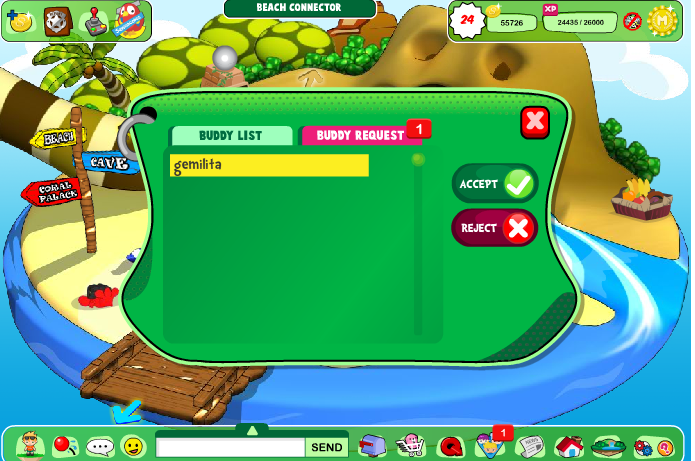
- The Buddies icon now has notifications when you have a pending Buddy request.
- User names of the SqwishLand players requesting to be added as your buddy will appear under the Buddy Request tab. Select a user name and click Accept or Reject.
- You will see all your buddies under the Buddy List tab. You will also know if your buddy is online or offline. By selecting a user name, you can choose to do any of the following: Send Postcard, Visit House, Search Buddy (know the current location of their SqwishLand avatar), and Remove Buddy.
Note: The Visit House and Search Buddy functions only work when your buddy is online. 
I told you this new buddy feature’s cool!
Oh, before I forget, you’ll notice that your old buddies are not in the list. SqwishLand reset the buddy lists so you’ll just have to add them up again when you’re online.
SqwishyJoey
Wednesday, August 17, 2011
How to join the Mighty Feathers Mighty Battle
Every two weeks, SqwishLand picks a minigame for the Mighty Feathers Mighty Battle. Whoever gets the top 3 highest scores by the end of the battle will win lots of Sqwash. Joining is easy, here’s how:
1. Log in to SqwishLand.com. Upon entering the virtual world, you will instantly see an icon in the room. The icon depends on which minigame is chosen as the Mighty Feathers Mighty Battle. In this screenshot, there’s a fruit basket located at the back of the barn museum because the current minigame is Lala Food Fight.
2. Click on the fruit basket. You’ll see a pop-up window like this.
3. Click PLAY NOW. Enjoy the game and try to get the highest possible score!
4. If you played really well, you can be one of the top 3 highest scorers who will win lots of Sqwash!
Best of luck, guys! That easy SqwishLand tutorial was brought to you by SqwishyJoey!
Virtual Pets
Wednesday, July 27, 2011
Getting to know Sqwishland Players
Hey, I’m back. How have you been guys? Well, I just wanted to share a new Sqwishland feature I discovered the other day. There’s now an easier way to get to know other Sqwishland players and add them up as your buddies.
1. Click on a Sqwishland character. These options will pop up:

2. Then, click on Info to know more about the character.

3. You can also check out their SqwishHomes by clicking on the Visit Home.

4. If you want to add them up as a buddy, click Add Buddy
I really love how Sqwishland is making things even easier for everyone to interact and meet other players in the game. I’d love to have you as my buddy too. So next time you see my avatar, don’t hesitate to add me as a buddy or visit my SqwishHome.
See you online!
SqwishyJoey
Virtual Pets
Tuesday, July 19, 2011
How to Enter a SqwishCode
Hi guys! I’m back! For today, I’ll be giving you a tutorial on how to enter a SqwishCode in the online game, Sqwishland.com. It’s simple really, just follow everything that I say.
1. When you buy a Sqwishland toy capsule, you’ll see the SqwishCode inside with the cute Sqwishland pencil topper. The SqwishCode is a strip of paper with a 14-digit code. If you don’t see a SqwishCode inside the capsule, you’ve been ripped off because that probably isn’t a Sqwishland toy!
2. Login to Sqwishland.com. When you’ve logged in, look for this icon and click on it.
3. This window will pop-up. Enter the SqwishCode. Review the SqwishCode that you’ve entered before hitting the Enter button.
4. When you have successfully entered a SqwishCode, this window will appear. Now you can buy a new Sqwishlander. Just click the OK button.
See, that was really easy, don’t you think? I’ll be back with more tutorials next time so stay tuned! ;)
SqwishyJoey
Virtual Pets
Thursday, June 30, 2011
Sqwishland Pet Moods
Have you guys noticed the moods that Sqwishlander pets show when they’re hungry or tired? In the Sqwishland 2.0, your Sqwishlander pets’ needs are just like your real pet’s needs. You need to feed them and make them happy so you can play with them in the minigames.
Notice that my Sqweep doesn’t show any mood, but the other 3 Sqwishlanders have angry moods. When your pet shows a mood just like that, check their Health, Energy, and Mood. They’re probably hungry or tired.
Here’s what Squizel, the official Sqwishland tour guide has to say:
Your pet is too tired. Replenish its health by feeding it. You can buy some Sqwishy food from the picnic area.
Some basic facts about your pet Sqwishlander:
- Everytime your pet levels up, they will grow in size and will get more pet XP
- If your pet’s energy drops down to less than 10, they will be too tired to play so make sure you feed them regularly.
- The mood bar indicates how happy your pet is. Higher mood level means more pet experience per game played.
Happy playing friends!
- SqwishyJoey
Virtual Pets
Wednesday, June 15, 2011
How to Shop at the Sqwop
I love shopping at Sqwishland's Sqwop. They've got a lot of cool items for my avatar and SqwishHome. If you still don't know how to shop at the Sqwop, here's a quick and easy guide that I made to help you out:
1. Sqwishland has 3 Sqwops. Choose from the Sqwop located at the Mayan Temple, Sqwicnic, or at the Coral Palace Market.
2. Click on the Sqwop and a window will appear. Choose from the Avatar, Furniture, House, or Special Items tab. I chose the Avatar tab to but a new top for my Avatar.
3. Once you've chose which item to buy, click on the Try button to see how it looks on your Av
4. When you're happy with the item, click on the Buy button. A window will pop up, click Buy.
5. Another window will up up confirming that you've successfully bought the item.
6. To check or use the item you just bought, go to your SqwishHome. Click on the Inventory icon at the lower part of your screen.
7. A window will pop up. Click on the tab where your item is categorized. I clicked on the Body tab because I bought a top. To use the item, select it and click Save.
Happy shopping at the Sqwop!
SqwishyJoey
Virtual Pets
Saturday, May 7, 2011
Playing Sqwishland for free!
Hello! Today, I will be sharing with you my experience in creating my very own account in Sqwishland, absolutely FREE! Shoutout to my brother who just taught me how to print what’s on my screen! I bet this will help me tell my stories better because you guys will be able to see it
So the first screen looks like this, it’s basically the home page of sqwishland.com. This is where you’ll see the website’s features: membership, toys, mobile, parents, gallery, sqwishfinder, help, and news and a lot of other stuff too. I’ll get to each option on my later entries. For now, let’s just focus on creating an account okay?
See the big red button that says “Play Now!”? That’s what I clicked when I was creating my account. It led me to a screen that looked exactly like the next picture:
You get to choose whether it’s your first time to play or if you already have an account. Since it’s my first time, I chose the “New User” option. It transferred me to a page where the site is asking for information like what I want my username to be, my secret password, and my mom or dad’s email. Having my own username and password! Isn’t that awesome! Sqwishland will then send something in the email that you entered. It looks like this:
Once you clicked the “Activate Account”, you’re good to go! It’s that easy. Of course you will be needing your parents to check their email for the activation but aside from that, you can easily do it
Now that you have your own username and password, be sure to keep it to yourself only! Another good thing about Sqwishland aside from its awesome games is that it constantly reminds us to be careful especially when dealing with the people we meet online. It’s like their own version of what are parents always say, do not talk to strangers!
I can now choose the existing member option and type in my own username and password! Yeyy!!
There are still many things to write about Sqwishland! But I have to do some exploring and playing the game first
Subscribe to:
Posts (Atom)